Family name
👉 Lenovo IdeaPad 3 15IAU7
The Fred Quest saga:
- 🖥️ Tame the machine → carve out your own local admin (done: Fred 🦸).
- 🌐 Explore the networks → refresh Windows networking hands-on (determine the fate of the machine).
- 🔧 Test the beast’s stamina → watch the fan/thermals before you decide if this Lenovo can replace Camelot.
- 🧙 Choose the fate → keep Windows as your “lab tavern,” or reforge it into a Linux node worthy of the kingdom.
Meet Fred
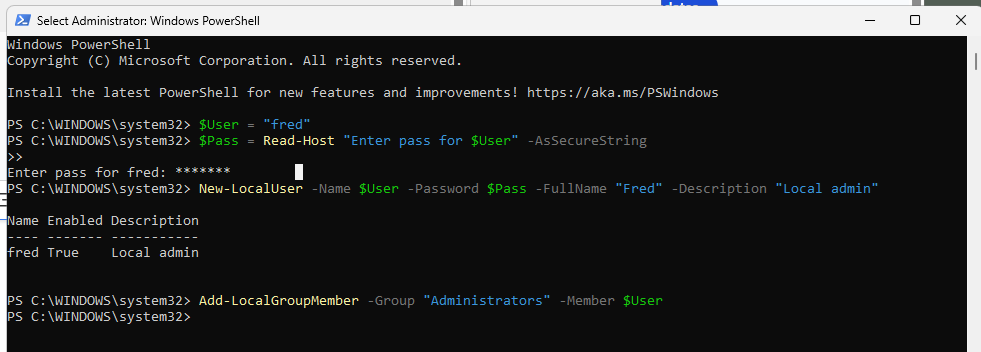
Windows PowerShell
Copyright (C) Microsoft Corporation. All rights reserved.

Install the latest PowerShell for new features and improvements! https://aka.ms/PSWindows

PS C:\WINDOWS\system32> $User = "fred"
PS C:\WINDOWS\system32> $Pass = Read-Host "Enter pass for $User" -AsSecureString
>>
Enter pass for fred: *******
PS C:\WINDOWS\system32> New-LocalUser -Name $User -Password $Pass -FullName "Fred" -Description "Local admin"

Name Enabled Description
---- ------- -----------
fred True    Local admin


PS C:\WINDOWS\system32> Add-LocalGroupMember -Group "Administrators" -Member $User
PS C:\WINDOWS\system32>
So now that Fred is alive, the next fork in the road is:
- Do we arm him with networking tools for the refresher battle? ✅
-
Or scout the health of the beast (fan/temp check) before piling on work? ✅
Some weeks later ... The Hood (subnet)
10.20.30.1   camelot   ← ✅ gateway for the subnet
10.20.30.2   frodo     ← just another host, not a router
10.20.30.3   johnnycamelot (fred)
Almost forgot you password fred. Good thing it's pretty basic
Not yet 🔥 — here’s the clear state of play:
-
JohnnyCamelot (Windows 11) is at
10.20.30.3, IP is good. -
Camelot is at
10.20.30.1and can ping him. -
But Windows doesn’t run an SSH server by default. Out of the box, Windows 11 only has the SSH client (
ssh.exe), not the server (sshd).
So when you try:
ssh fred@10.20.30.3
from Camelot, you’ll still get connection refused unless you enable OpenSSH Server on the Windows side.
To make SSH work (on JohnnyCamelot)
- Log in as fred.
- Open Windows Command Prompt (or PowerShell) as Administrator.
- Run:
Add-WindowsCapability -Online -Name OpenSSH.Server~~~~0.0.1.0
sc config sshd start=auto
net start sshd
netsh advfirewall firewall add rule name="sshd" dir=in action=allow protocol=TCP localport=22- Verify it’s running:
Get-Service sshd- Now from Camelot:
ssh fred@10.20.30.3⚡ Until you do step 3 on Windows, port 22 will stay closed.
👉 Do you want me to give you the exact copy-paste block for Windows CMD (not PowerShell) so you can drop it straight in without worrying about syntax differences?
🔥 Okay, that explains it. If Camelot can’t even ping 10.20.30.3 (JohnnyCamelot/Fred), then SSH won’t work either. That means the problem isn’t sshd — it’s network reachability.
Why ping might fail
-
Windows firewall blocks ICMP (ping)
- By default, Windows often blocks inbound ping.
- So ping failing doesn’t necessarily mean the host is offline.
-
Subnet/gateway mismatch
-
Fred’s IP:
10.20.30.3 -
Subnet mask should be
/24→255.255.255.0 -
Gateway:
10.20.30.1(Camelot) - If Windows auto-set something else (or no mask/gateway), Camelot and Fred may not be on the same logical network.
-
Fred’s IP:
-
Cable/NIC issue
- Less likely now, since you were online and updating earlier.
What to do on JohnnyCamelot
Check networking from Fred’s side (Command Prompt, run as Admin):
ipconfig /all
Confirm:
-
IPv4 Address =
10.20.30.3 -
Subnet Mask =
255.255.255.0 -
Default Gateway =
10.20.30.1
Then test locally on Fred:
ping 10.20.30.1👉 If Fred can ping Camelot, the cabling and gateway are fine. If Camelot still can’t ping Fred, it’s just Windows firewall rules.
To allow ping on Fred
Enable ICMP Echo in Windows firewall:
netsh advfirewall firewall add rule name="ICMP Allow incoming V4 echo request" protocol=icmpv4:8,any dir=in action=allow⚡ Next step:
-
Run
ipconfig /allon JohnnyCamelot. -
Try
ping 10.20.30.1from there.
That will tell us if it’s firewall vs routing.
👉 Want me to give you a copy-paste block that adds both the ping rule and confirms sshd port 22 is allowed, so you solve both problems in one shot?