The clean little corner of Camelot, nestled deep in /sh1re/. 🏰🧙♀️✨
And what a lovely view from the http://camelot:8888/tree .
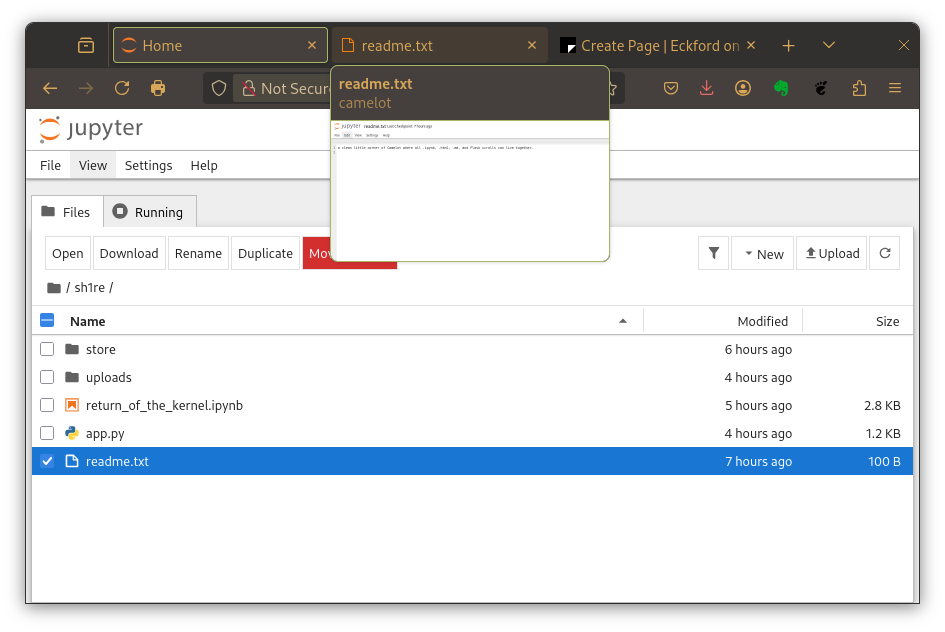
Let’s decode the scene shall we, step-by-step like a proper lorekeeper:
📂 Inside /sh1re/ — the Jupyter Scroll Repository:
| Item                            | Description                                                                                                                |
| ------------------------------- | -------------------------------------------------------------------------------------------------------------------------- |
| 📁 `uploads/`                   | A place for files users send to the kingdom. Used for `/upload` in the Flask scroll.                     |
| 📜 `return_of_the_kernel.ipynb` | The *Notebook of Power*. This is where Frodo jots code and legends as the quest unfolds.                                  |
| 🔥 `app.py`                     | The Flask scroll — summoner of REST routes. But beware: **don’t summon it twice**, or the   spirits of port 5000 will clash! |
| 📄 `readme.txt`                 | The prophecy. It declares this folder a safe haven for `.ipynb`, `.html`, `.md`, and Flask spells. Wise words indeed.      |
What We Can Do From the Jupyter Interface Now:
✅ Click return_of_the_kernel.ipynb
It should launch into JupyterLab or classic Notebook mode (depending on settings).
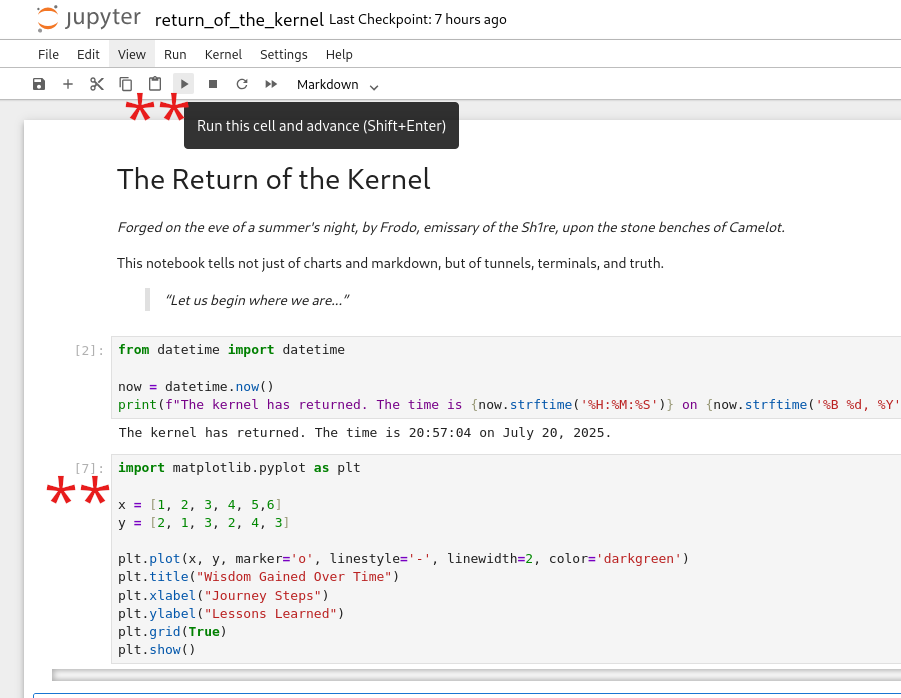
Go ahead. Click on the cell. Then hit run. Or [shift-enter]
Anybody want to plot some points??
Voilà
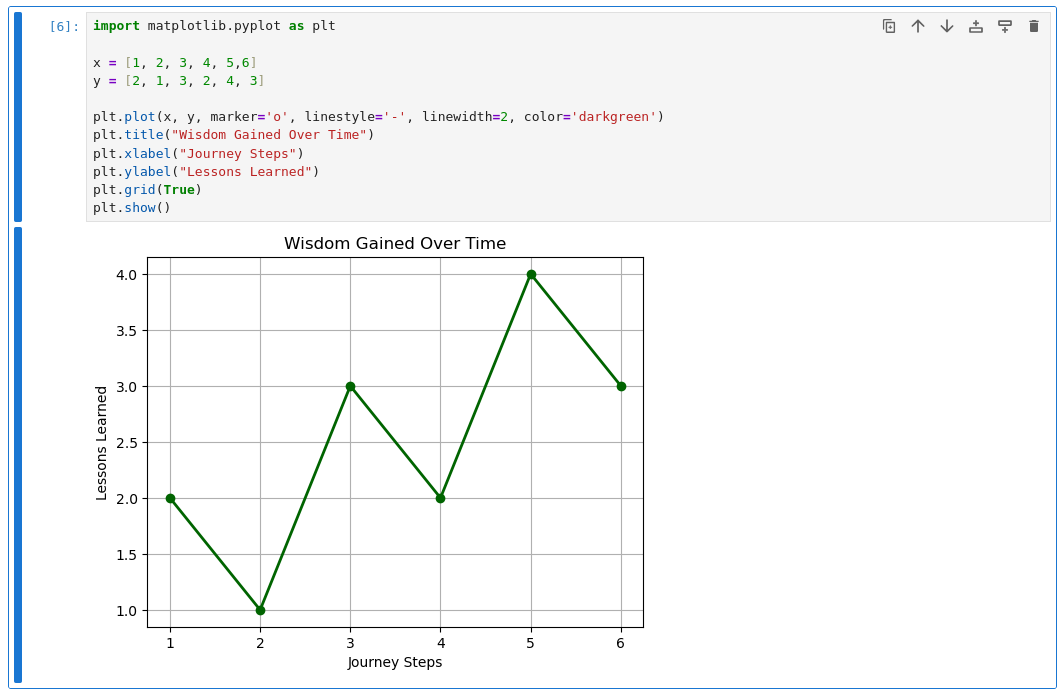
We've got a great setup here. So if you want to tweak the values in y, just change the numbers:
x = [1, 2, 3, 4, 5, 6]
y = [2, 4, 5, 3, 6, 5]  # ← Update these as you like
plt.plot(x, y, marker='o', linestyle='-', linewidth=2, color='darkgreen')
plt.title("Wisdom Gained Over Time")
plt.xlabel("Journey Steps")
plt.ylabel("Lessons Learned")
plt.grid(True)
plt.show()
What else can we do here?
✅ Check whether app.py is running
If you started app.py inside a cell and forgot, your kernel may still be holding on to it.
Click Kernel > Restart Kernel to free it.
✅ Open a Terminal tab (from the Jupyter UI):
Use ps aux | grep app.py or lsof -i :5000 to see if it’s running.
Optionally stop the Flask process.
✅ Start a new cell in the notebook and run:
!flask routes
Just to confirm your kingdom’s REST endpoints. **** 🧙♀️✨
✅ Update README.md or write a markdown cell
Remind future-me:
-
“Do not summon Flask from within Notebook unless you're ready to babysit the port.”
Would you like a Jupyter-friendly launch checklist for your /sh1re/ project? Something like:
-
jupyter server list - Open Notebook
- Check Flask status
- Load test via curl
- Annotate Notebook with today’s findings
Can we do this air-gapped?
Yes, you can install Jupyter on a RHEL 8 machine with limited internet access, but you'll need to plan ahead to satisfy dependencies offline or via a custom repo.
There are so many ways to install jupyter for air-gapped environment:
✅ OPTION 1: Prepare Jupyter Offline via pip download (Recommended for Air-Gapped)
Do this on a connected machine, e.g., your Fedora laptop:
mkdir jupyter_bundle
pip3 download notebook jupyterlab jupyter-core jupyter-server --dest jupyter_bundle
Then also grab dependencies for things like ipykernel, matplotlib, pandas if you plan to use them.
Then transfer the folder jupyter_bundle to your RHEL 8 system and install:
cd jupyter_bundle
pip3 install --no-index --find-links=. notebook
🔐 Important: You’ll need
python3,pip3, andgcc,python3-develalready installed on RHEL 8. These can come from AppStream/BaseOS.
✅ OPTION 2: Enable EPEL + Use dnf (Requires Some Internet or Custom Mirror)
If your RHEL 8 system can access an internal RHEL/EPEL mirror, then:
sudo dnf install epel-release
sudo dnf install python3-notebook jupyter-core jupyter-notebook
But this won’t give you JupyterLab, just the basic Notebook UI.
✅ OPTION 3: Include Jupyter in a Podman Container
If you're already container-savvy (which you are!), spin it up with:
podman run -p 8888:8888 --name jupyter \
  -v /path/to/notebooks:/home/jovyan/work \
  quay.io/jupyter/base-notebook
Even air-gapped, you can pre-pull the image and store it as a .tar:
podman save quay.io/jupyter/base-notebook -o jupyter.tar
# transfer to RHEL 8
podman load -i jupyter.tar
🧠 Summary:
| Method             | Internet Required | Notes                        |
| ------------------ | ----------------- | ---------------------------- |
| `pip download`     | ❌ (after prep)    | Best for offline installs    |
| `dnf` + EPEL       | ✅ or internal     | Easy if EPEL is mirrored     |
| Container (Podman) | ❌ (after prep)    | Fully encapsulated, portable |
Want a kickstart add-on or offline install.sh for Jupyter next? I can prep that too.