Quick as a Bunnie
Yes. Existing Sandbox. Site-level Pages. Category tags. Menu.
Tuesday Do It!
-
Use the existing Sandbox site.
-
Select approximately 20 site-level
.aspxpages as demonstration Playbooks. -
Tag them with 3 Category values. They don't have to be genuine Playbooks.
-
Leave unrelated pages without a Category.
-
Configure the site navigation menu by Category.
-
Demonstrate Menu → Category → Playbook Page.
No new site for tomorrow. No libraries, conversions, or alternative architectures.
The dedicated site is the future production direction, not tomorrow's prerequisite.
That's the plan.
Tuesday, October 27: Sandbox Playbook Demo
Setup instructions | Native SharePoint Online
Objective: Demonstrate navigation to approximately 100 existing Playbooks organized in 15 Category folders, including nested subfolders.
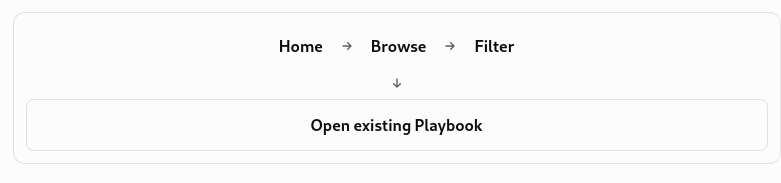
1. Identify existing content
-
Open Sandbox.
-
Navigate to the existing Playbooks folder.
-
Identify its 15 Category subfolders.
-
Identify subcategories and Playbook titles within each.
-
Use the existing folder and Playbook names as navigation labels.
Nothing in the Playbooks folder needs to change.
2. Enable the navigation menu
If Sandbox is a Communication Site:
-
Open Settings → Change the look → Navigation.
-
Select Mega menu.
-
Save.
-
Select Edit on the site's navigation bar.
Microsoft supports headings, links, and three menu hierarchy levels in Mega Menus.
Microsoft Support+1
3. Build the Table of Contents
Use this structure:
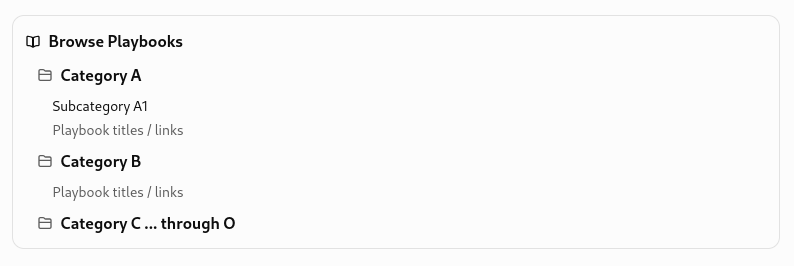
For each entry:
-
Select Label for a heading that doesn't need a destination.
-
Select Link for an actual Playbook.
-
Use the existing Playbook's direct
.aspxURL. -
Arrange entries using Move and Make sub link.
-
Save navigation changes.
Navigation labels can preserve folder names, even though folders aren't automatically imported into the menu.
4. Establish the filtering experience
For this demo, menu selection narrows the user's choices by Category and subcategory.
This is hierarchical menu filtering, not an automatically generated metadata checkbox filter.
The menu can link directly to existing Playbooks. It does not automatically list every page within a folder.
Consequently, each Playbook title included in the menu needs a navigation entry. That is the manual work involved in displaying all 100 titles.
5. Prove the complete journey
- Home opens with site navigation visible
- Browse Playbooks displays the Category headings
- Select a Category or subcategory
- Select an existing Playbook title
- Confirm the actual Playbook opens
- Return to the site menu and open another
Test a Playbook in a nested folder as well as one directly inside a Category folder.
6. What to record
|
Test |
Result to capture |
|---|---|
|
Category hierarchy |
Folder names preserved |
|
Nested folders |
Subcategories represented intelligibly |
|
Page links |
Existing |
|
Menu persistence |
Navigation available on Playbook pages |
|
Presentation |
Readable and usable for Service Desk staff |
|
Maintenance |
Effort required to create and update 100 menu links |
One important distinction for the demo
The navigation menu is confirmed OOTB functionality. Automatically populating that menu from existing folders is not. Microsoft documents manual links and labels, not automatic folder-to-menu generation.
Therefore, start with one complete Category and confirm that navigation works before populating the remaining 14.
Tomorrow's deliverable: A functional site-level Playbook ToC using the Sandbox's actual folder hierarchy and existing pages, plus a clear assessment of the manual menu maintenance involved.
No new site, no content moves, no scripts, no additional lists, and no custom code.