We're back to two paths, both aimed at the SharePoint Playbook
|
Path 1: Native SharePoint |
Path 2: PnP Modern Search |
|
|---|---|---|
|
Available in PROD |
Yes |
No, access required |
|
Filtering |
Directly on Library Columns |
Through searchable Managed Properties |
|
URL parameters |
|
|
|
Requires search crawl |
No |
Yes, for new mappings |
|
Display |
Formatted Library Views/cards |
Search Results web part/cards |
|
Landing Page |
Links to filtered views |
Dynamic search blocks on the page |
Path 1: Get the five Plays working immediately as filtered, formatted cards. No crawl, no PnP.
Path 2: Pursue PnP access for PROD, use Category, Audience and Status through the search schema, and build the dynamic Landing Page you originally envisioned.
The important distinction is that Path 1 gets us working category navigation; Path 2 gets us the query-driven Landing Page.
Neither path replaces the need for good native keyword search in your Knowledge Base.
We can keep both paths open without mixing their mechanisms again.
SharePoint does the interpretation automatically. You just need to tell it which library column to read and which value to match.
For your Playbook, that's Category.
1. The URL filter
?useFiltersInViewXml=1&FilterField1=Category&FilterValue1=NetworksHere's what SharePoint interprets:
|
URL parameter |
Meaning |
|---|---|
|
|
Apply URL filtering to the library view |
|
|
Read the library's Category column |
|
|
Show only Plays tagged Networks |
No managed property, search query, or crawl required.
Microsoft 365 Community Content
2. Your three Categories
Append one of these to your existing library view URL:
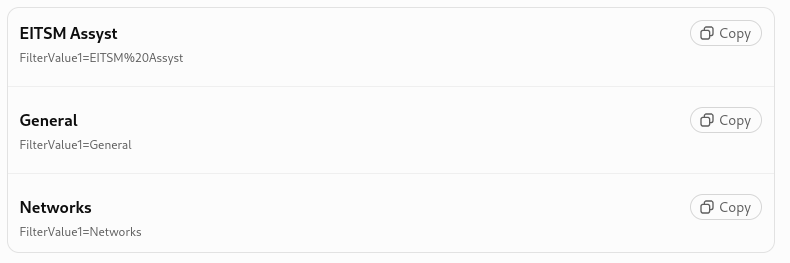
3. One thing to verify
Category must be the column's internal SharePoint name, not merely its display name.
To check: Library Settings → More library settings → Columns → Category. Look in the browser URL for Field=Category.
If that's correct, open the existing library view, append the Networks filter, and press Enter.
You should immediately see only the Networks Plays.
That's the first test. Once it works, use the same pattern for all 20 ToC links.
SharePoint Library filter pane
Good choice for Monday. The native SharePoint Library filter pane gives us multi-select Category filtering without building custom controls.
The plan is straightforward:
-
Open the existing Pages Library.
-
Select the formatted view we want users to see.
-
Open the Filter pane (funnel icon).
-
Select Networks and General under Category.
-
Confirm the Plays displayed match both selections.
-
Save the formatted view as the default, if it isn't already.
One thing to check: Category must be available in the filter pane. If it isn't, we can configure that through the view's column settings.
This gives us a practical Monday test without committing to the more elaborate 3 × 5 interactive grid.
We can keep the attractive Category grid as the eventual landing-page design, while testing the filtering mechanism first.
Yes. You're building filters against the Pages Library, using its existing Category column.
When you select Networks and General in the filter pane, SharePoint constructs the filter criteria and displays matching Plays.
-
Multiple Categories: OR (Networks OR General).
-
Different columns: generally AND (Category = Networks AND Audience = Internal, for example).
-
No search crawl or managed-property mapping required.
One useful distinction for Monday: these are library view filters, not SharePoint Search queries (KQL).
You can experiment interactively with the filter pane, then decide which combinations deserve saved views or URL links on your ToC.
So yes, you're effectively building queries, without having to write them.
Monday: SharePoint Online Playbook Landing Page
Objective: Reproduce the clean, compact, Category-filtered Playbook interface shown in the screenshot using native SharePoint Online.
1. What already exists in PROD
-
Dedicated SharePoint Online Playbook site.
-
Existing Site Pages Library containing Plays as
.aspxpages. -
Five Plays entered for the proof of concept.
-
Existing Category column, with EITSM Assyst and Networks already assigned.
-
Approximately 12–15 Categories anticipated.
-
Existing Severity column with coloured Critical, High and Normal pills.
-
Built-in Description field available through Page details.
-
Native SharePoint keyword search confirmed working.
-
Existing formatted library presentation.
2. Landing Page components
|
Component |
SPO implementation |
|---|---|
|
Page container |
Modern Site Page |
|
Heading |
Text web part |
|
Search |
Native Site Search |
|
Category selector |
Category metadata filtering |
|
Play results |
Document Library web part |
|
Results presentation |
Custom Library View |
|
Category |
Existing Category column |
|
Play |
Title, linked to the |
|
Description |
Built-in Page Description |
|
Severity |
Existing coloured Choice pills |
|
Results count |
Library view item count |
|
Full library access |
See all link |
3. Agreed presentation
Category selection
-
Approximately 15 Categories.
-
Compact horizontal, wrapping selection controls.
-
Neutral appearance, with the active Category highlighted.
-
Include All to clear the selection.
-
Immediate update of results.
-
Multiple-Category selection desirable, but not essential for the first implementation.
Play results
-
Compact, full-width table rather than large cards.
-
Title as the prominent clickable field.
-
Description of approximately 100–150 characters.
-
Severity displayed using existing coloured pills.
-
Selecting a Play opens its
.aspxpage in a new browser tab. -
Default display includes all Plays.
No Owner column. No folders. No accordion.
4. SharePoint configuration
-
Create a public Site Pages Library view named Playbook Index.
-
Include Title, Category, Description and Severity.
-
Apply existing Severity pill formatting.
-
Format Description for a compact display, approximately 150 characters.
-
Configure Title links to open Plays in a new tab.
-
Add a Document Library web part to the Playbook Landing Page, selecting Site Pages → Playbook Index.
-
Confirm Category filtering and results update directly on the page.
-
Publish the Landing Page.
5. One outstanding implementation item
Make the Category selector resemble the horizontal selection controls in the screenshot, and connect it to the results below.
The Pages Library's native Filter pane is our working filtering mechanism. The horizontal Category selector is the presentation we want to achieve.
We have not yet established a native SPO configuration that turns Category values into those interactive horizontal buttons connected to the Document Library web part.
That is the remaining implementation question, not a reason to redesign the page.
Target: One modern SharePoint Landing Page, one existing Pages Library, one compact Playbook Index view, searchable and filterable by Category without unnecessary navigation.
Yes. We established a URL pattern for Category filtering, without saved View IDs or GUIDs.
And your two-page idea makes sense:
-
Playbook Landing Page: Search, Category navigation, and introduction.
-
Playbook Index: The formatted Pages Library view showing matching Plays.
Both use the existing Site Pages Library. No duplicated Play content.
The URL pattern
.../SitePages/Forms/AllPages.aspx
?useFiltersInViewXml=1
&FilterField1=Category
&FilterValue1=Networks
The Category link supplies the value. The library view supplies the presentation.
For example:
|
Category |
URL value |
|---|---|
|
Networks |
|
|
General |
|
|
EITSM Assyst |
|
We agreed to use the default formatted view, avoiding saved-view GUIDs.
For multiple Categories, the documented pattern is:
?useFiltersInViewXml=1&FilterFields1=Category&FilterValues1=Networks%3B%23GeneralThat requests Plays in either Category.
Monday's confirmation: Check the actual Pages Library view URL in PROD and test these filters before using them for navigation.
So yes, we have the URL-building method. What we haven't yet proven is whether a modern Landing Page can pass those parameters into an embedded library web part. That's why the two-page design may be the cleaner implementation.